

How to import multiple text files in SQL Server with SSIS ? Format can be csv or txt, to import into a table using a simple SSIS package and a loop.
This tutorial explains how to import multiple text files into SQL Server with SSIS using a single package and a dynamic loop to detect flat files. To start with, all text files (.txt, .csv, etc…) must be in the same folder.
This automatic integration uses dynamic variables and allows to integrate many files with the same structure at the same time. To load several flat files dynamically, use an SSIS loop, i.e. the SSIS Foreach Loop Container component.
This package uses the same components as the previous SSIS tutorial to import a single flat file into a SQL table. It is therefore the same data flow used, but this time with variables in the dynamic file path.
Also to emphasize the power of integration tools, do not forget that once you develop your package, you will be able to load 2 files as well as 1000 files in the same loop.
Table of Contents
Step 1: Material and SQL Script to import Multiple Text Files in SQL Server with SSIS (Premium content)
First, to access our resources, to support us and much more, subscribe to our SSIS Full training available on Udemy.
Data integration with SSIS – with SSAS and Power BI bonus

The files are stored like this:
- C:\data, contains these CSV files:
- Customers_Data_1.csv
- Customers_Data_2.csv
- Customers_Data_3.csv
Then create the destination table. The table uses the same structure as the tutorial for loading a flat file and fills a column with the full path to the source file.
Then, to access target table creation code, enroll in our SSIS Full training available on Udemy.
/*

Then, to access target table creation code, enrol in our SSIS Full training available on Udemy.

*/
Step 2: Create the file loop and the SSIS data flow
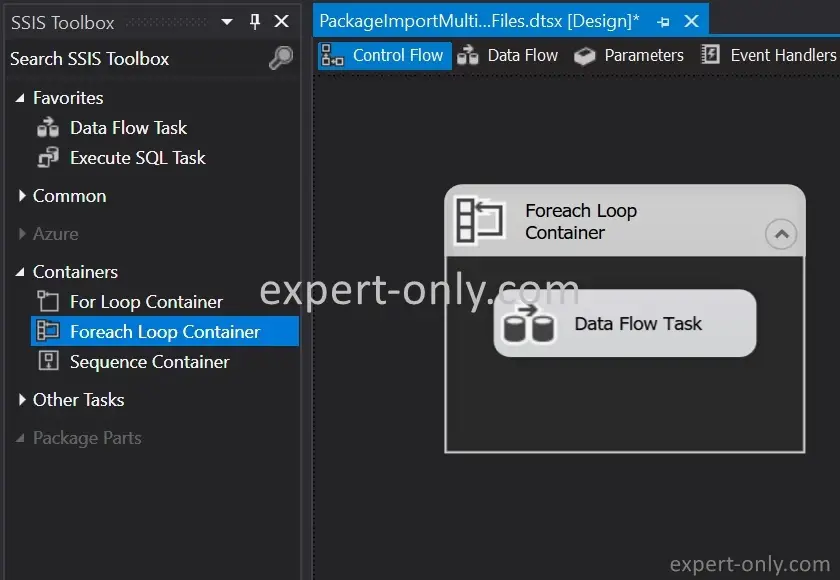
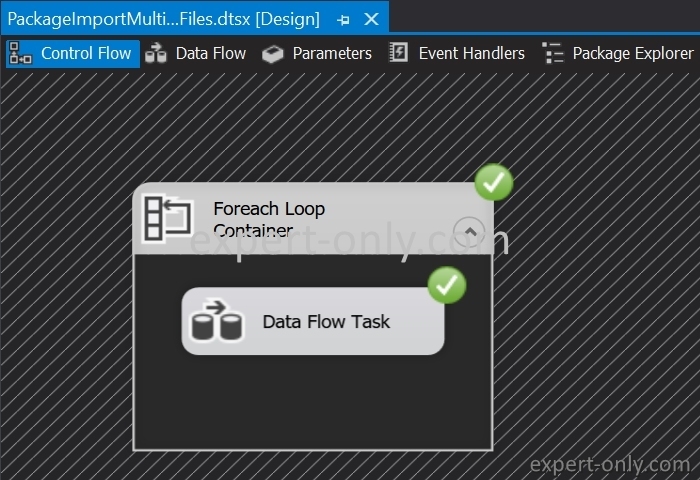
First, use a loop from the control flow tab. Then select the dynamic Foreach Loop Container and drag it onto the workspace.
Step 3: Create the SSIS dynamic variable to store the file path
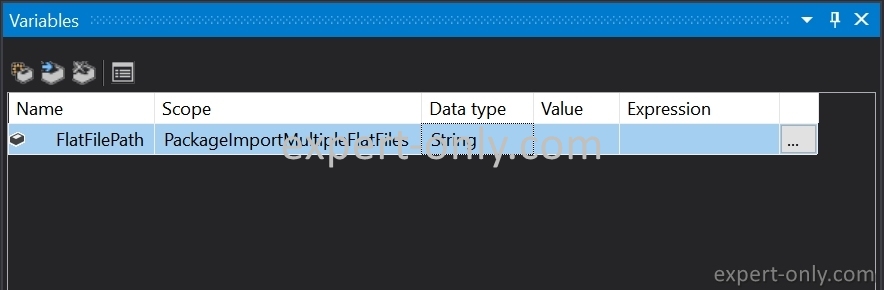
Create a variable named FlatFilePath of type String at the package level. To display the variables, click on the package and press F4 or right-click in the data flow area. Here the variable is called FlatFilePath and the Data Type is String.
Set up the flat file connection as detailed in this tutorial with a data flow to load a flat file. It is the same principle but this time the dataflow allows to load several text files with a single SSIS package. Then modify the ConnectionString expression to use the dynamic variable instead of the hard path.

Use the variable created before so that at each passage in the loop, the file name is dynamic.

Step 4: Configure the SSIS Foreach File Loop container
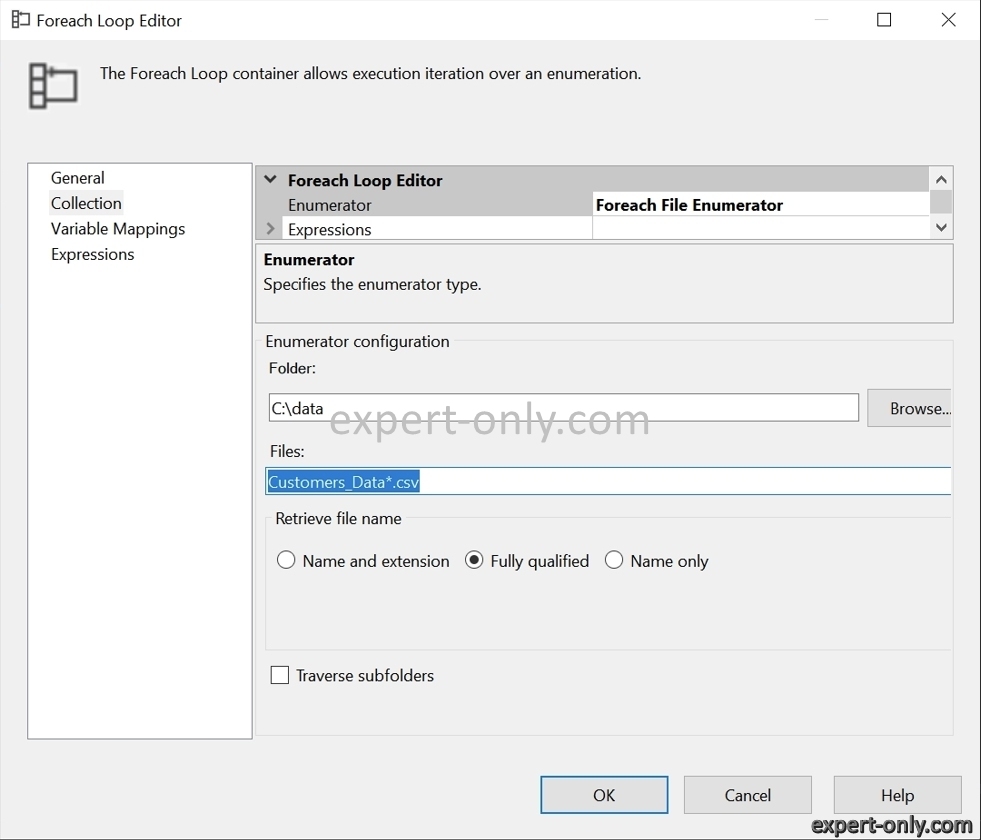
Then double-click on the Foreach Loop Container sequence. In the Collection tab :
- Choose the folder where the flat files are located: C:\Data
- Then specify the name of the flat files to be loaded with SSIS: Customers_Data*.csv
- Choose the full name of the file with the path: Fully qualified
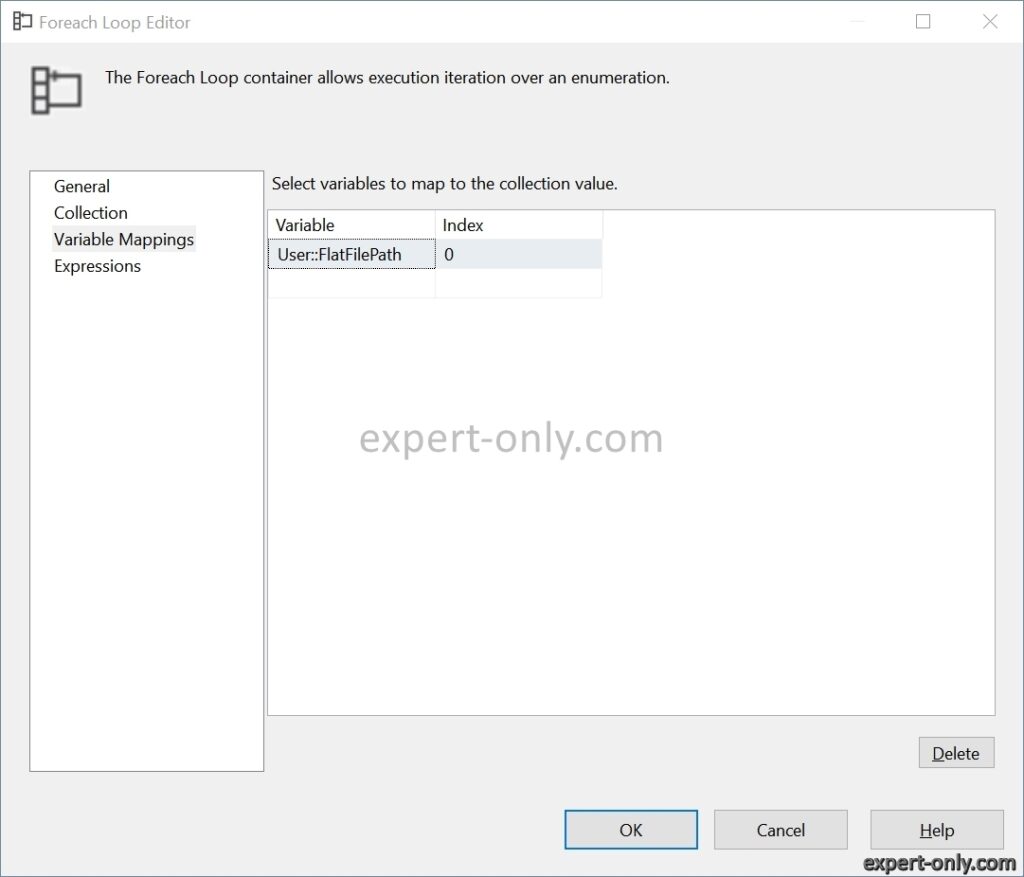
Then, in the Variable Mappings tab, link the FlatFilePath variable to index 0. This link dynamically transmits the name of the current file to the variable and therefore to the file connection.
Step 5: Add the file name to import using SSIS derived column
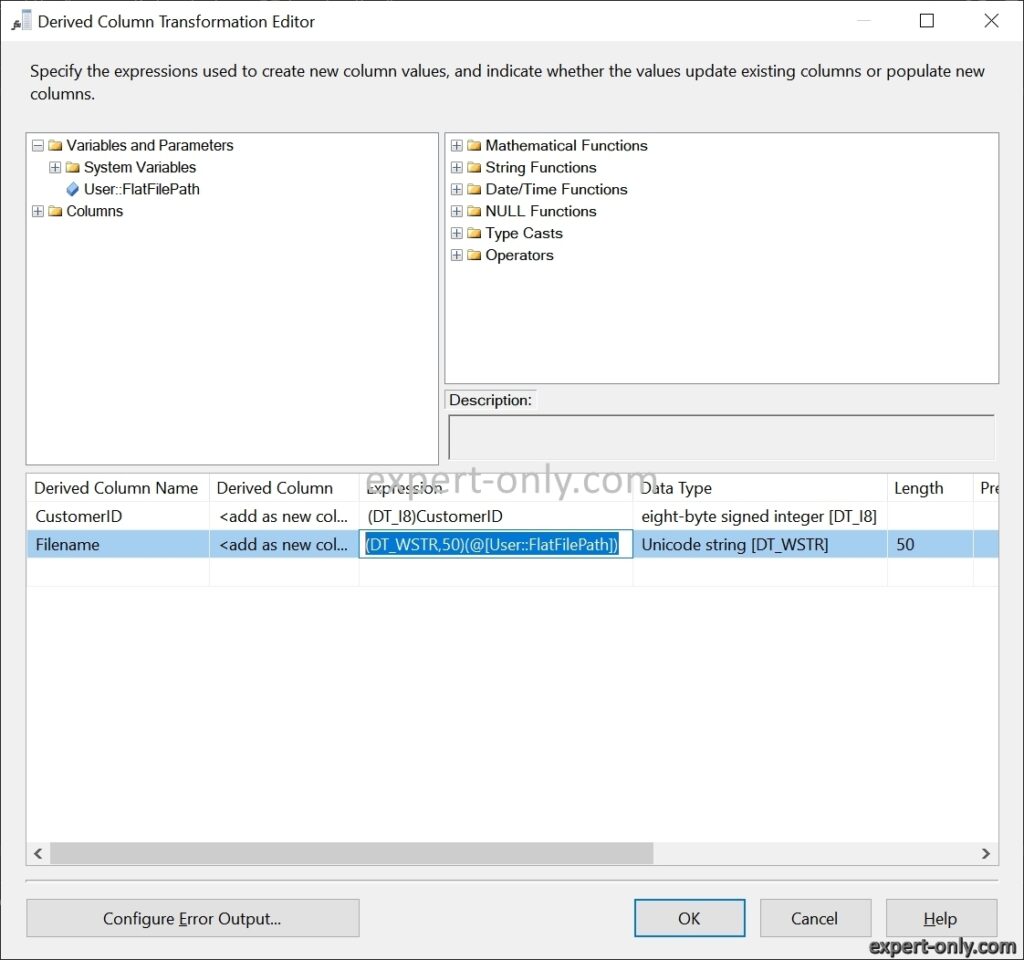
Edit the derived column component and add the following two derived columns for:
- Add the Customer ID in integer format
- Add the source file name from the dynamic variable
Step 6. Run the package to Import Multiple Text Files in SQL Server with SSIS and check data in SSMS
Now start the loading. I.e the actual process to import multiple text files in sql server with SSIS.
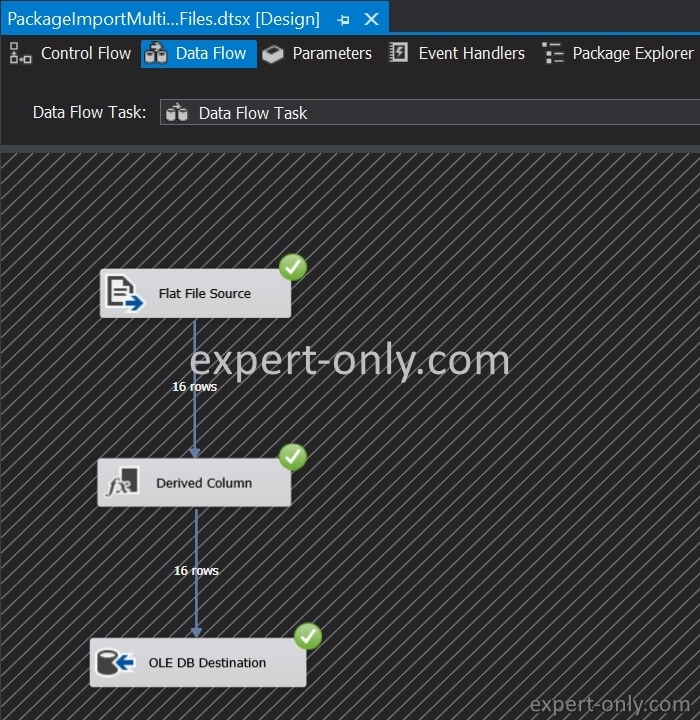
The DTSX package loads the flat files into the database one by one. It means that the same data flow is executed one time per file detected in the source folder. In this case, 3 iterations occur, one per file.
Clicking in the data flow, we notice that 16 lines are integrated in each iteration.
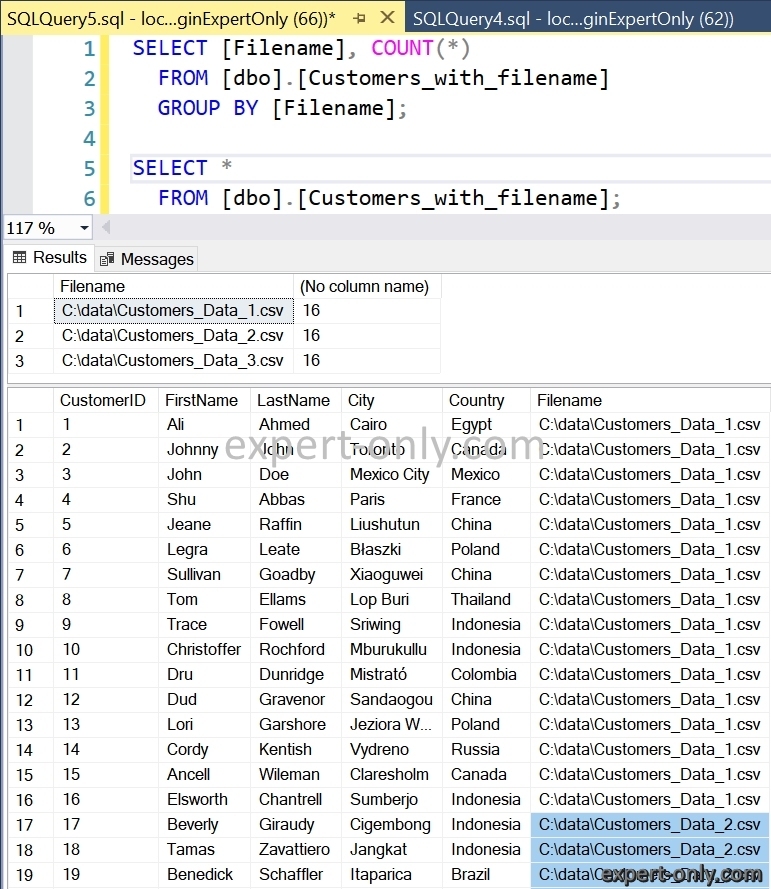
Finally, check the results with the 2 following SQL queries. The result is consistent with 16 rows embedded for each source file, with no errors.
SELECT [Filename], COUNT(*)
  FROM [dbo].[Customers_with_filename]
  GROUP BY [Filename];

SELECT *
  FROM [dbo].[Customers_with_filename];
Conclusion on multiple text files import with SSIS
So to conclude on how to import multiple text files in SQL Server with SSIS in 6 easy steps, let me remind an important thing. To avoid errors when importing of multiple text files into a SQL Server table with SSIS, check the encoding of the files to process.
The encoding diferrence is definitely a classical SSIS and more widely, an integration error. Also, the mapping of the variable is mandatory to make the package dynamic and avoid manual development.
More on data import and export with SSIS
- Create a basic data flow with SSIS
- Create a connection to a SQL Server database in SSIS
- Import an text file into a SQL database with SSIS
- Create a package to import Excel data into SQL Server





Be the first to comment